Subscription Module Initialization
This document describes the setup and configuration of the Subscription feature in the project.
Overview
The Subscription module enables users to select, purchase, and manage subscription plans. It supports multiple payment methods and integration with Recurly for plans and payment processing.
Configuration Interface
interface SubscriptionModuleConfig {
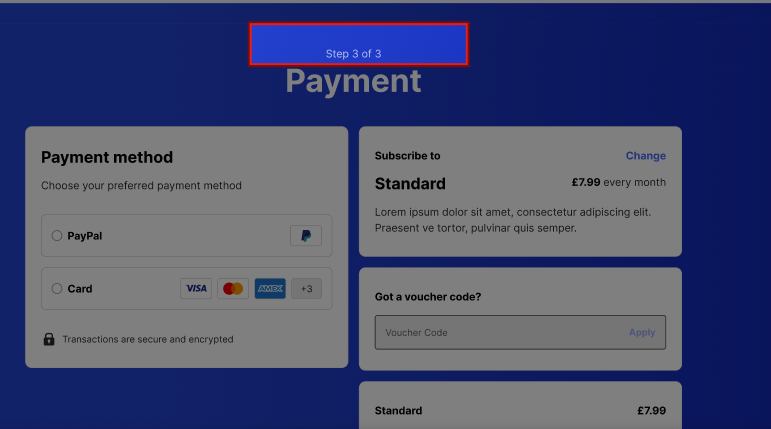
    totalSteps: number;
    maxVisibleCards?: number;
    stepsMap: {
        [key: string]: number
    },
    cardOptions?: string[];
    paymentMethodOptions?: PaymentMethodOption[];
}
Configuration Details
- totalSteps: Number of steps in the subscription flow (e.g., plan selection, billing).
- stepsMap: Maps each step key to its order in the flow.
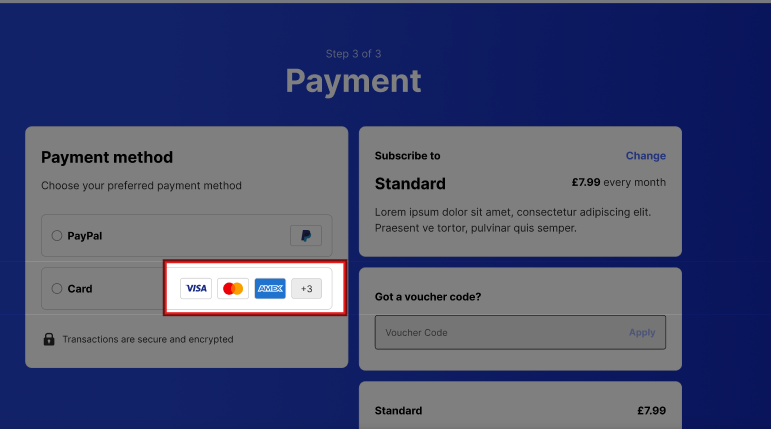
- maxVisibleCards (optional): Default 4, User is shown card logos against cards (if less than or equal to 4 then show all of them, if more than 4, then show first 3 & in 4th tile show +'remaining count')
- paymentMethodOptions (optional): Default "Card". You can provide array of supported payment methods(Currently OOTB we support PayPal and Cards), You can also manage rendering sequence.
- cardOptions (optional):
- default supported card options are:
PAYMENT_CARD_OPTIONS = ['American Express', 'MasterCard', 'Visa'];Note:
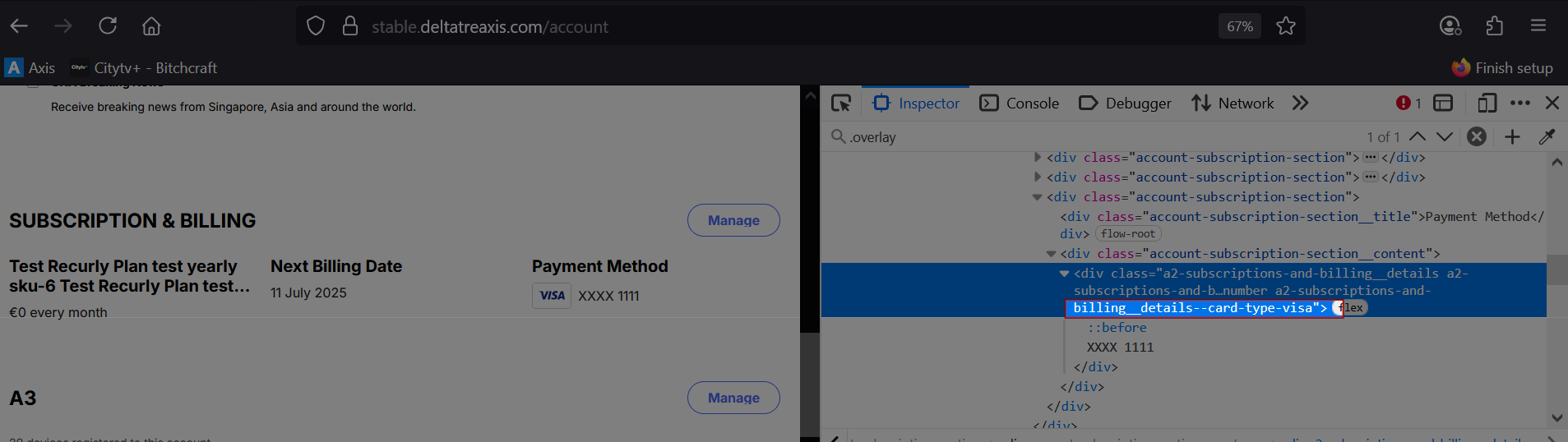
The stylesheet uses the card name (as returned by Recurly) as a class name to display the card icon.
For example:&--card-type-american-express {&::before {background-image: var(--assets-payment-card-providers-amex);}}If your project wants to add a new card type to the array, first confirm the exact card name returned by Recurly for that card type.
Then, add a corresponding style for it to display the correct card image. This style can be added in the product or project stylesheet by targeting the specific element.Why confirm the card name in the Recurly response?
When displaying the card icon on the Account Page, the card name is read from the Recurly payment method response and formatted to kebab-case. The stylesheet must have a matching class for that kebab-case name to ensure the icon is shown correctly.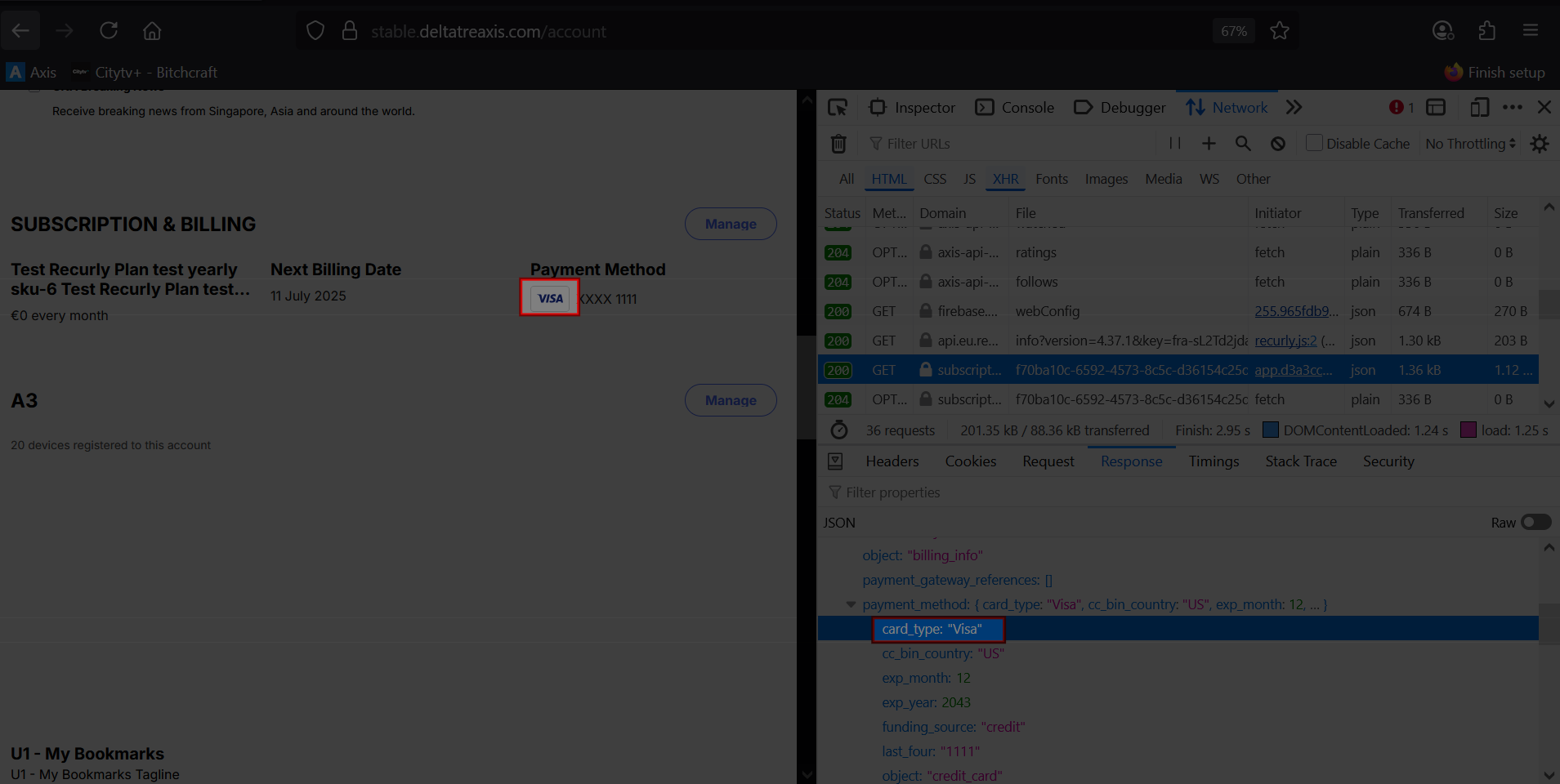
- default supported card options are:
- RecurlyProvider: Integrates Recurly as a payment provider, using environment variables for configuration.
Supported Payment Methods
- PayPal
- Cards
Environment Variables
Ensure the following environment variables are set for Recurly integration:
CLIENT_RECURLY_BASE_URL=https://v3.eu.recurly.com/js/v1(Base URL for Recurly API).CLIENT_RECURLY_API_KEY: API key for authenticating with Recurly.
Initialization Example
The Subscription module is initialized in project-repo/src/shared/initializers/modules.ts as follows:
SubscriptionInitializer({
    totalSteps: 3,
    stepsMap: {
        [PlanSelectionPageKey]: 2,
        [PlanBillingPageKey]: 3
    }
},
RecurlyProvider({
    recurlyBaseUrl: process.env.CLIENT_RECURLY_BASE_URL,
    recurlyKey: process.env.CLIENT_RECURLY_API_KEY
}))
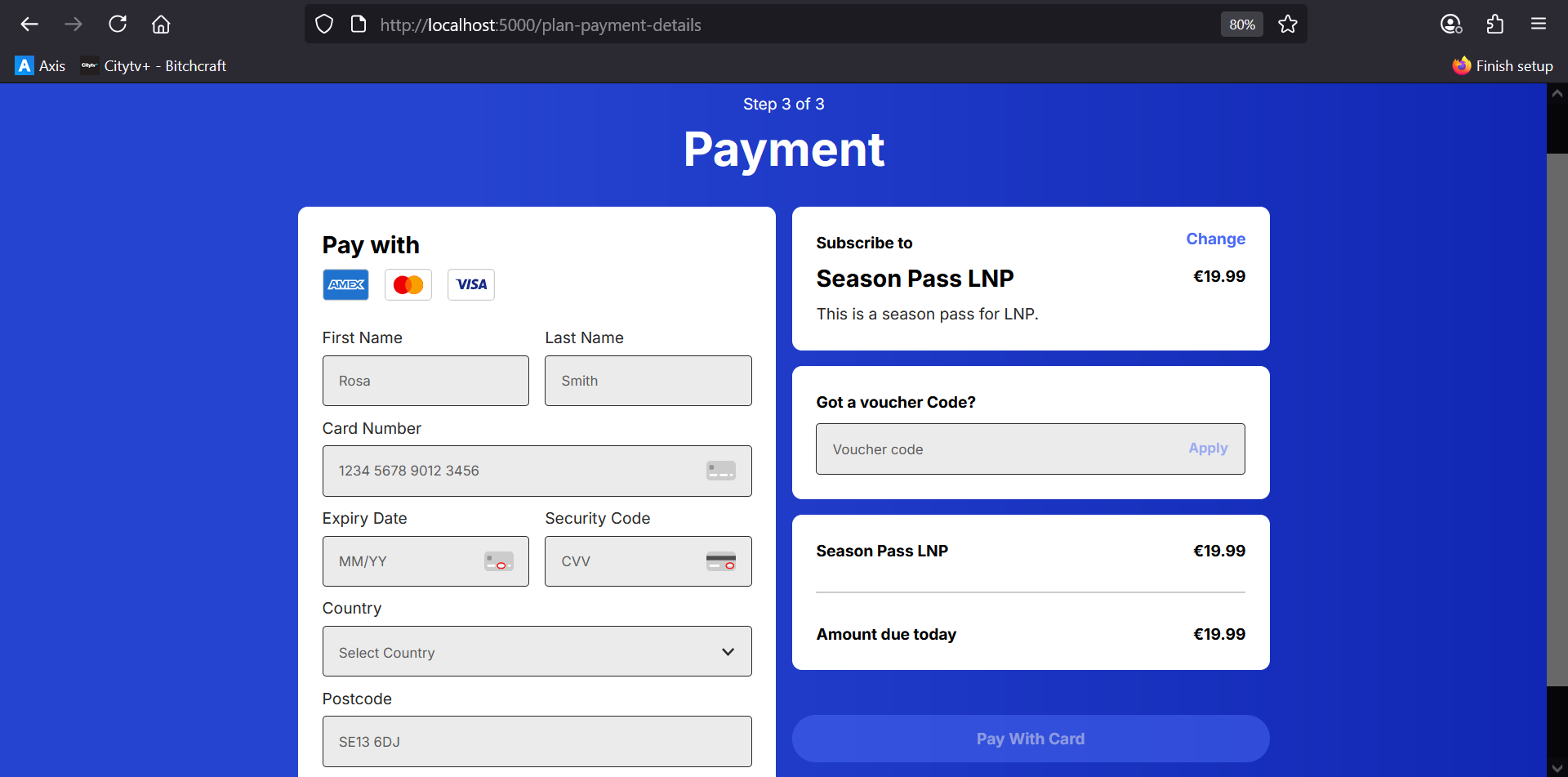
Output:
Enable PayPal
Set environment variable:
DEPLOYMENT_HEAD_SCRIPTS="<script src='https://js.recurly.com/v4/recurly.js'></script>"
Initialize module with payment method configurations:
SubscriptionInitializer({
    totalSteps: 3,
    stepsMap: {
        [PlanSelectionPageKey]: 2,
        [PlanBillingPageKey]: 3
    },
    paymentMethodOptions: [
        {
            id: PaymentMethodOptions.PayPal,
            label: '@{subscription_billing_multi_payment_method_form_option_paypal_label| PayPal}',
            componentTemplateKey: PaymentMethodOptionPayPalTemplate
        },
        {
            id: PaymentMethodOptions.Cards,
            label: '@{subscription_billing_multi_payment_method_form_option_cards_label| Cards}',
            componentTemplateKey: PaymentMethodOptionCardTemplate
        }
    ],
},
RecurlyProvider({
    recurlyBaseUrl: process.env.CLIENT_RECURLY_BASE_URL,
    recurlyKey: process.env.CLIENT_RECURLY_API_KEY
}))
Output:
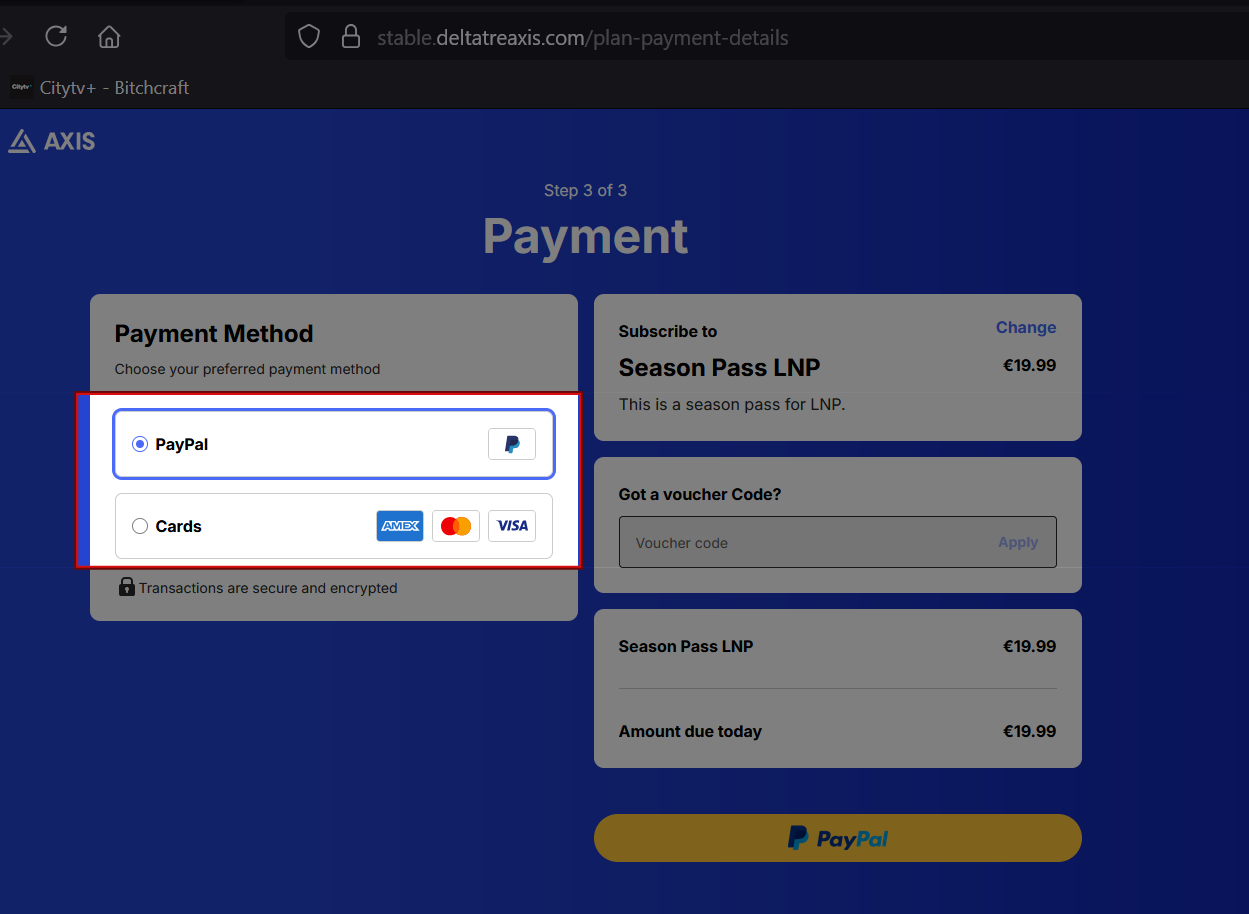
Note: To run PayPal locally, you will need to add
<script src='https://js.recurly.com/v4/recurly.js'></script>
inproject-repo/resource/ref/index.html.js.
Important: Do not commit this change. This is a temporary workaround to run PayPal locally.